






















- Key takeaways
- Free project management tools compared
- 1. monday.com – Best for individual use
- 2. ClickUp – Best for feature-rich free plan
- 3. Notion – Best combined notetaking and task tracking
- 4. Asana – Best for basic task tracking
- 5. Wrike – Best for complex timelines
- 6. Jira – Best for agile software teams
- 7. Teamwork.com – Best for client-facing work
- 8. Smartsheet – Best spreadsheet-style project management
- 9. Trello – Best for visual project planning
- 10. Miro – Best for collaborative brainstorming
- Which features are usually missing from free PM plans?
- Free vs paid project management apps: Key differences
- How to choose the best free project management tools
- FAQs
Key takeaways
 ClickUp, Smartsheet, and Jira are the top picks for free project management tools: ClickUp for the most feature-rich freemium plan, Smartsheet for spreadsheet-style work management, and Jira for agile software teams.
- ClickUp is the best free option for growing teams. Its free plan supports unlimited users and includes core task management, while paid upgrades add Gantt charts, time tracking, portfolios, and resource management.
- ClickUp is the best overall free pick. It also has the lowest upgrade cost among these options for teams that need several advanced PM features at once.
| Free project management tools | Best for | Starting monthly price |
|---|---|---|
| monday.com | Best for individual use | $9 per user |
| ClickUp | Best for feature-rich free plan | $7 per user |
| Notion | Best for notetaking & task tracking | $10 per user |
| Asana | Best for basic task tracking | $10.99 per user |
| Wrike | Best for complex timelines | $10 per user |
| Jira | Best for agile software teams | $9.05 per user |
| Teamwork.com | Best for client work | $10.99 per user |
| Smartsheet | Best spreadsheet-style project management | $9 per user |
| Trello | Best for visual project planning | $5 per user |
| Miro | Best for collaborative ideation | $8 per user |
Why you can trust Project-management.com
Over the past four years as a project management writer, I have personally tested nearly 20 PM platforms, and several of them have become part of my own workflow. I have written dozens of buyer’s guides covering a wide range of use cases and company sizes, which gave me a broader understanding of what project professionals actually need from these tools. Beyond hands-on testing, I design custom scoring rubrics for each evaluation to make sure every platform is assessed accurately and on equal footing, not ranked on gut feel or vendor claims.
Marianne Sison
Senior Staff Writer for Project Management

How I evaluated the best free project management tools
This guide highlights the leading project management tools that provide a free-forever plan. I selected these tools based on a careful assessment, using five weighted criteria to reflect the features most valuable to businesses or project professionals.
- Feature availability in free plan (30%): My top priority in selecting the free tools for project management was ensuring you receive robust functionality at no cost, including essentials like unlimited task creation, sufficient storage, collaboration tools, and custom fields.
- Ease of use (25%): Since smaller teams rarely have dedicated tech support, I favored tools that are intuitive, accessible via mobile devices, and equipped with ready-to-use templates or built-in automations.
- Scalability (20%): Tools received higher marks if they provided clear upgrade paths, allowing you to scale as your business grows, with flexible user limits, guest access, and additional features available as you expand.
- Integration capabilities (15%): Since most teams rely on multiple software platforms, I prioritized tools offering extensive integrations with popular apps and compatibility with automation services like Zapier and Make.
- Support and resources (10%): I considered the availability of onboarding support, knowledge bases, and responsive customer service, which are essential for helping non-technical teams achieve productivity quickly.
Each software underwent rigorous evaluation against these criteria, supported by factors such as user limits, project capacity, and integration counts. Platforms requiring upgrades for essential functionality or restricting usage to only a single user were ranked lower to prioritize genuinely accessible, forever-free options.
Free project management tools compared
| Free plan access | Free plan limits | My rating | |
|---|---|---|---|
| monday.com | Up to 2 users | 3 boards, 200 items, no guests or viewers | 4.9 out of 5 |
| ClickUp | Unlimited members | 60MB storage, 1 form, limited usage of some features | 4.78 out of 5 |
| Notion | Unlimited members* | 1,000-block cap when 2+ members use the workspace; individual workspaces get unlimited blocks | 4.23 out of 5 |
| Asana | Up to 2 users | No Timeline or Gantt view; 100MB maximum file size | 4.17 out of 5 |
| Wrike | Unlimited users | 200 active tasks and 2GB storage per account | 4.13 out of 5 |
| Jira | Up to 10 users | 2GB storage, 100 automation runs per month, limited permissions | 4.12 out of 5 |
| Teamwork.com | Up to 5 users | 5 projects and 100 automations | 4.1 out of 5 |
| Smartsheet | No free plan for new users | Free plan was discontinued for new signups in 2024; a free trial is available | 3.98 out of 5 |
| Trello | Up to 10 collaborators per workspace | 10 boards per workspace, 10MB per file, 250 automation runs per month | 3.87 out of 5 |
| Miro | Unlimited members | Only 3 boards remain editable; no guest role or private boards | 3.43 out of 5 |
1. monday.com – Best for individual use




Why I picked monday.com
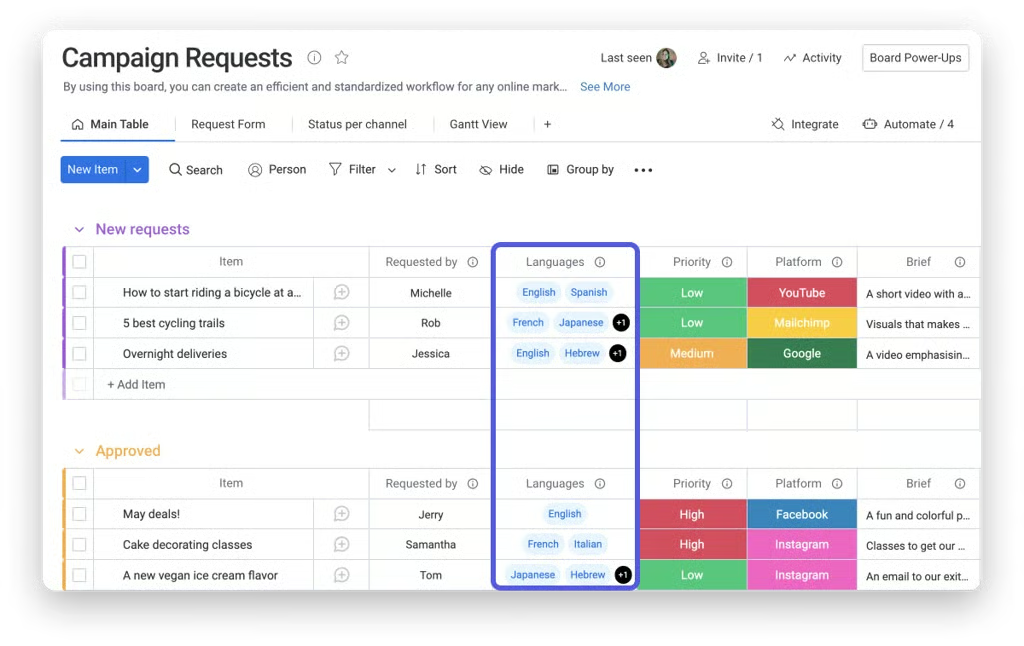
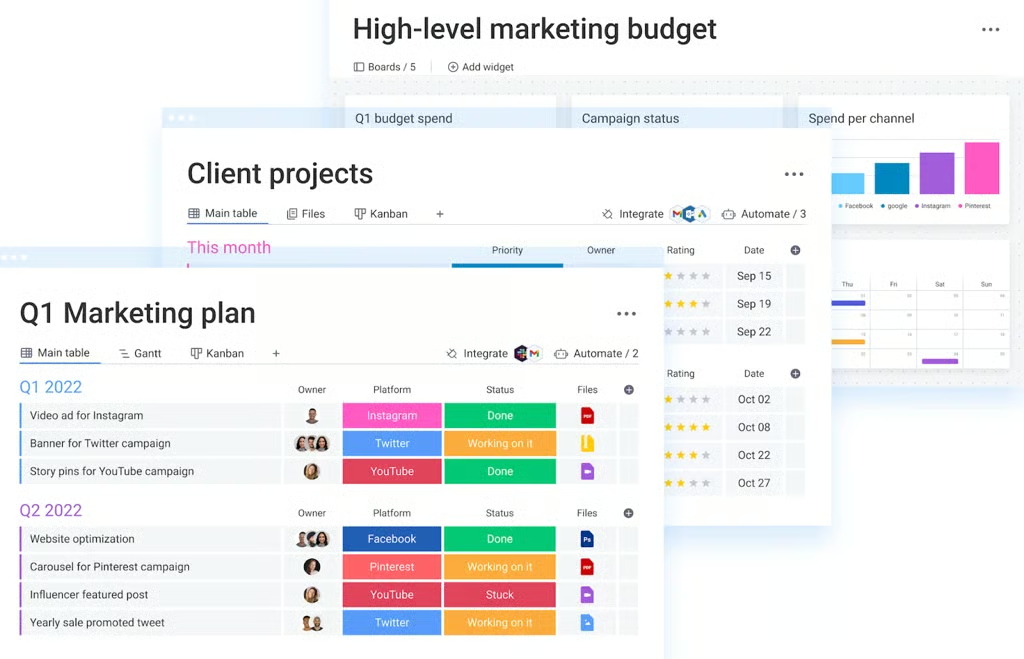
I’ve used monday.com for managing my own projects and tasks, and it’s why I recommend it as one of the best free project management tools for solopreneurs and project professionals. Its simple and visually appealing interface lets you quickly create projects and track tasks, making navigation effortless for any skill level. With its drag-and-drop interface and customizable templates, I can build workflows that match my priorities and planning style.
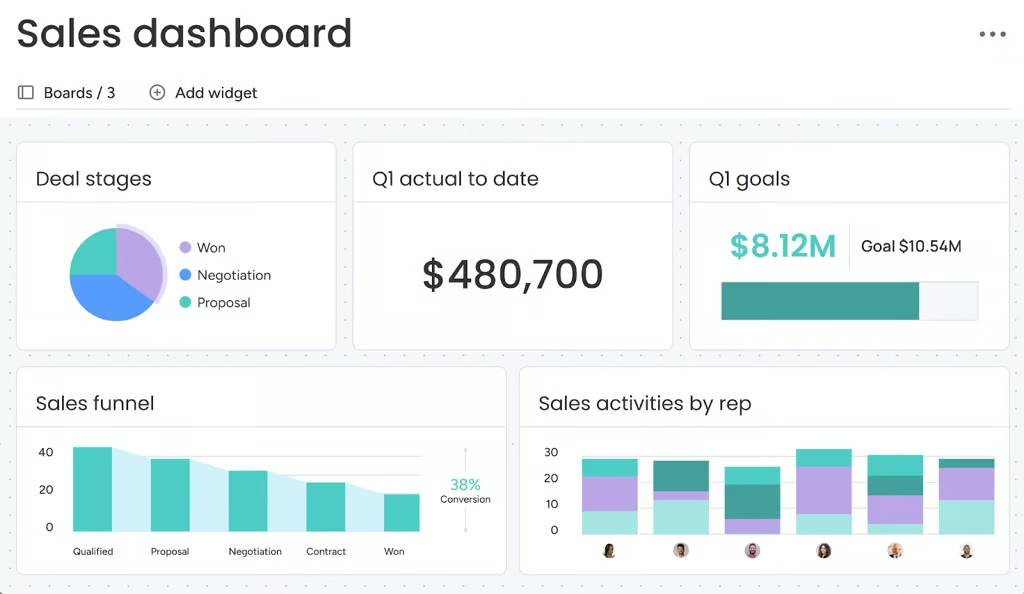
monday.com includes unlimited dashboards on its Free plan, so a single user can summarize one work board at a time with up to 15 widgets. Although the account supports two users, I find it better suited to a solo user who wants a separate board for personal tasks or freelance assignments. The Free plan includes three boards and forms that turn submitted requests into new items. You begin with 200 items across the account and build Kanban boards and work documents for project notes.
The 200-item starting cap is most likely to interrupt ongoing use because every active task or record consumes part of the same allowance. Asana is more suitable when the task count will grow because its free Personal plan permits unlimited tasks and projects for up to two users.
Pros
 Highly customizable project boards
- Intuitive automation tool
- Over 200 project templates
Cons
 Time tracking is available only in higher tiers
- Per group seat pricing model can be confusing
- Slight learning curve
Standout features
- Monday AI: Utilizes artificial intelligence to automate routine tasks and provide data-driven insights
- Embedded documents: Allows integration and editing of documents directly within your monday boards
- Custom notifications: Enables personalized alerts to keep team members informed about relevant updates and priority tasks
monday.com pricing
- Free plan: Up to 2 users and includes 200+ templates, Kanban view, embedded documents, and shareable forms
- Basic: $9/user/month — Adds 5GB storage, custom fields, unlimited documents, and monday AI credits
- Standard: $12/user/month – Adds Gantt view, 20GB storage, guest access, and automation & integration
- Pro: $19/user/month — Adds private boards, chart view, time tracking, and formulas
- Enterprise: Custom — Adds portfolio reporting and esource management
| Torn between monday.com vs ClickUp? |
| Choose monday.com if you prioritize a simpler visual workspace and only need the free plan for one or two people. ClickUp is the better free option for larger teams or projects that need dependencies and more project functionality before upgrading. Explore monday.com Free |
2. ClickUp – Best for feature-rich free plan




Why I picked ClickUp
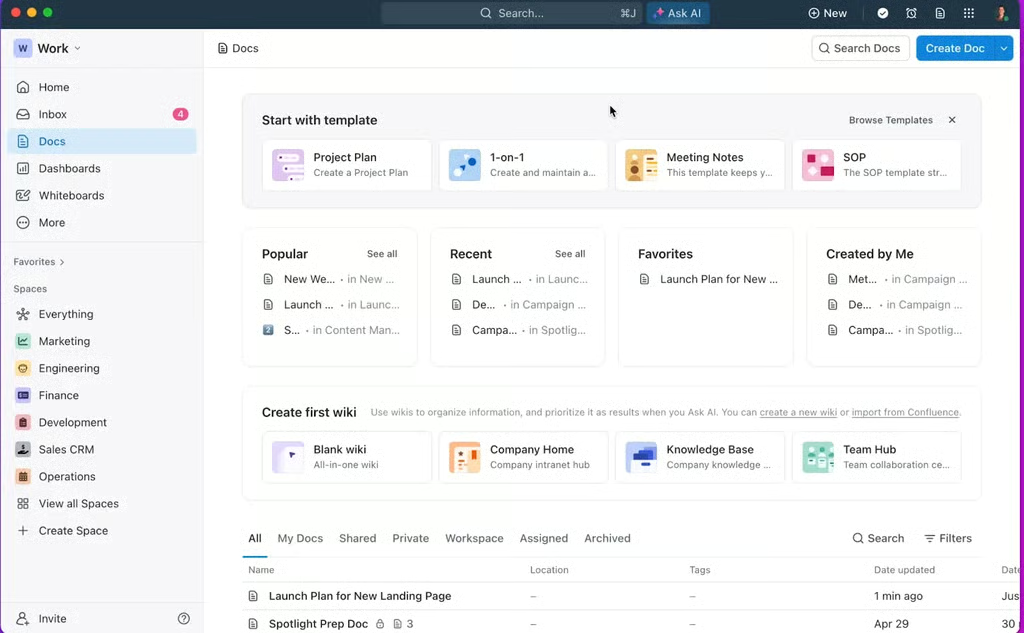
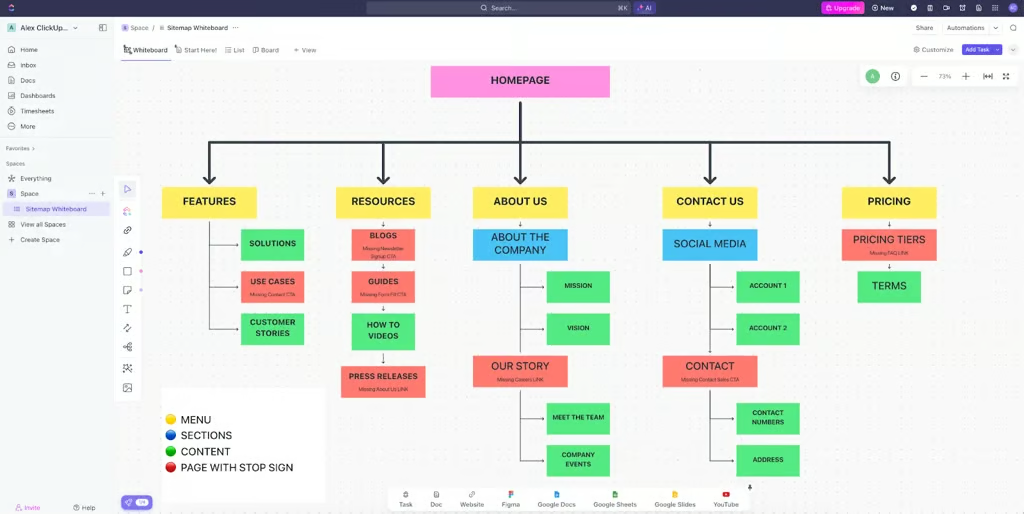
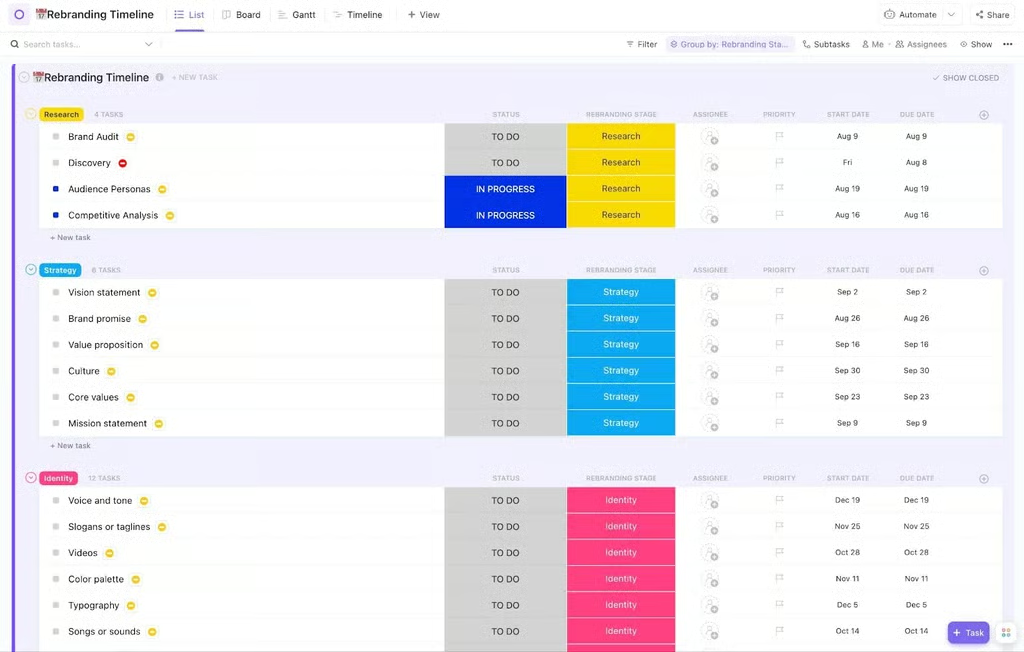
ClickUp includes more advanced capabilities in its free plan than most competitors. Some paid features come with limited trial uses, which may be sufficient for individuals or teams that need them occasionally. As a current user, this allows me to manage multiple projects effectively and enable dependencies for multi-layered tasks.
In the Free Forever plan, unlimited users can map several types of work without a seat charge. Its five active automations can move or update tasks after a trigger, so I find it more practical than a board-only tool for workflows with repeated handoffs.
Each automation starts with one trigger and can perform up to six actions, but the workspace receives only 100 automation actions per month. The allowance resets on the first day of each month in Pacific time, and all automations pause for the rest of the month after the limit is reached.
For high volume users, frequent usage of automation rules can quickly use up 100 automation credits. Alternatively, Trello provides 250 command runs per month on its free plan, so you get more room for recurring board-based rules before purchasing additional credits.
Pros
- Up to 16 project views
- Free plan boasts a rich feature set
- Access higher tier features via trial credits
Cons
- Feature density can overwhelm new users
- Steep learning curve
- Lacks time tracking on the free plan
Standout features
- Column calculations: Performs automatic calculations like sum, average, or range within list and table views
- Everything view: Provides a comprehensive overview of all tasks across your workspace, regardless of their location within the platform
- In-app video recording: Allows you to record and share screen recordings directly within tasks or comments
ClickUp pricing
- Free Forever: Includes unlimited users, Kanban view, collaborative docs, 60MB storage, in-app video recording, and sprint management
- Unlimited: $7/user/month — Adds integrations, forms, Gantt charts, real-time chat, time tracking, guest permissions, portfolios, and resource management
- Business: $12/user/month — Adds timeline view, activity views, whiteboards, workload management, and sprint points and reporting
- Enterprise: Custom — Adds conditional logic in forms, custom workload capacity, SSO, advanced permission, enterprise API, and custom roles
3. Notion – Best combined notetaking and task tracking




Pros
- Rich customization options for pages
- Provides templates for various use cases
- Extensive self-help resources
Cons
- Inability to create new pages in offline mode
- Complex to use when dealing with large data sets
- Lacks native time tracking features
Why I picked Notion
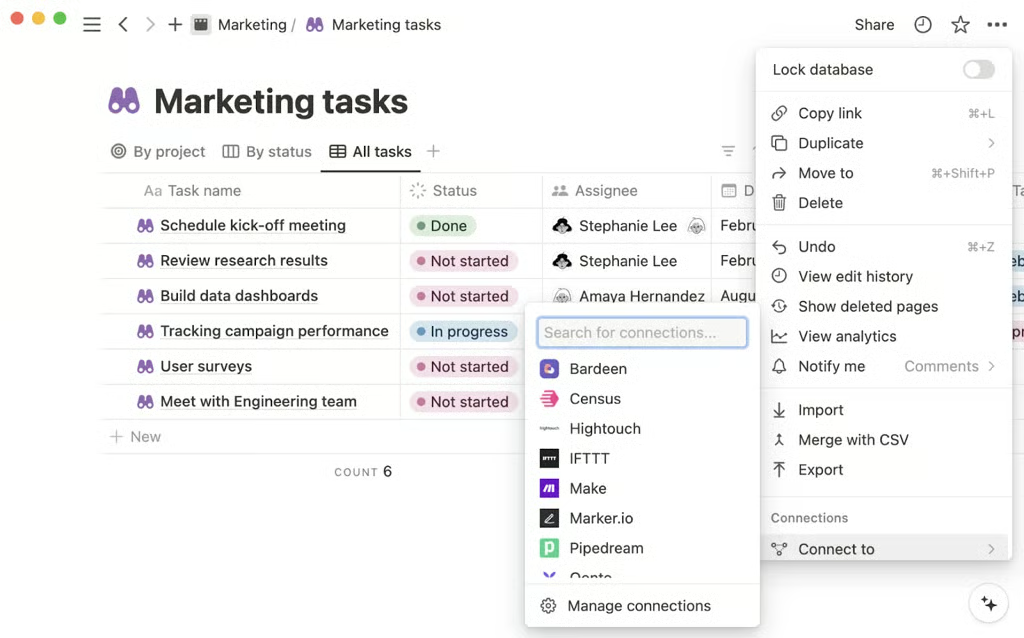
Notion offers unlimited pages and content blocks on its Free plan, so one person can keep meeting notes beside task databases without counting each entry. Those databases include subtasks and dependencies, which let a solo user connect a project plan to its supporting documents.
A database can display hundreds or thousands of items with custom properties and filters, while each task can open as a full page for knowledge bases or wiki. The free account also includes 10 external guests and seven days of page history, but each uploaded file is limited to 5MB.
When a second workspace user joins, an unpublished cap applies to content blocks, and Notion stops new content once that cap is reached. ClickUp is more suitable for team documentation because its Free Forever plan supports unlimited users and includes collaborative Docs.
Pros
- Rich customization options for pages
- Provides templates for various use cases
- Extensive self-help resources
Cons
- Inability to create new pages in offline mode
- Complex navigation when working with large data sets
- Lacks native time tracking features
Standout features
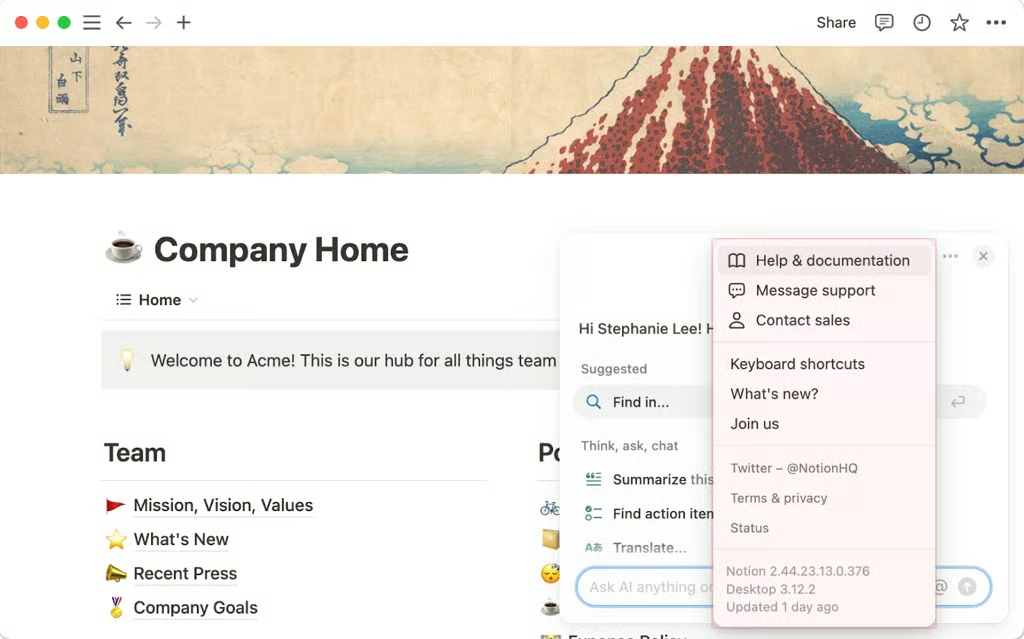
- Dynamic link previews: Displays live previews of content from external tools like Jira or GitHub directly within Notion pages
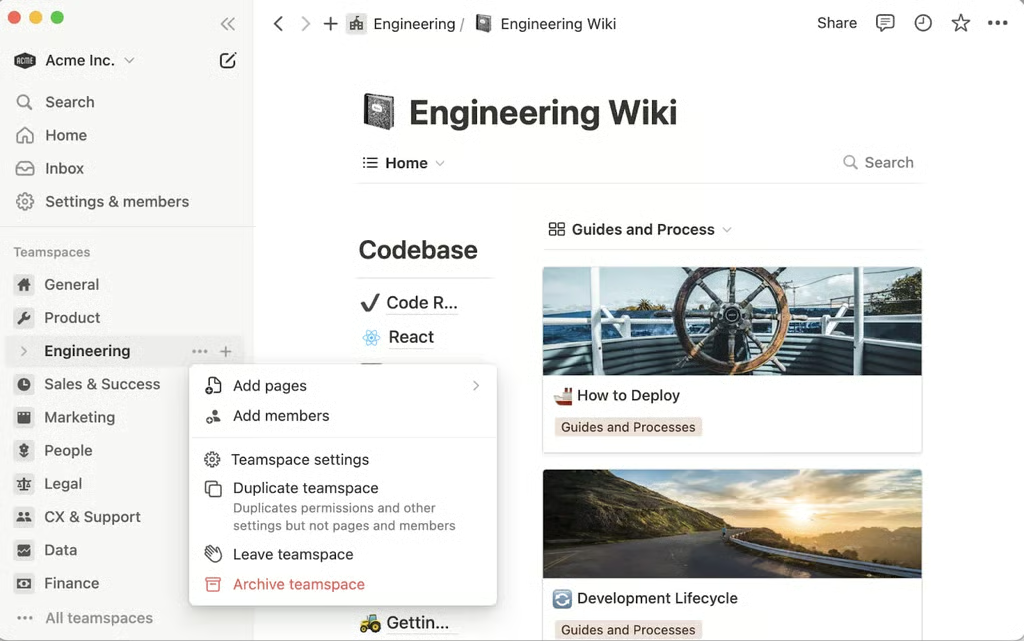
- Collaborative workspace: Facilitates real-time collaboration with team members on shared documents and databases
- Site customizations: Allows customization of your Notion sites with branded domains, favicons, and navigation bars
Notion pricing
- Free: Includes basic forms, sites, Notion Calendar & Mail, and databases
- Plus: $10/user/month — Adds unlimited file updates, custom sites, and integrations
- Business: $20/user/month — Adds database permissions and conditional forms logic
- Enterprise: Custom — Adds advanced security and controls
4. Asana – Best for basic task tracking




Why I picked Asana
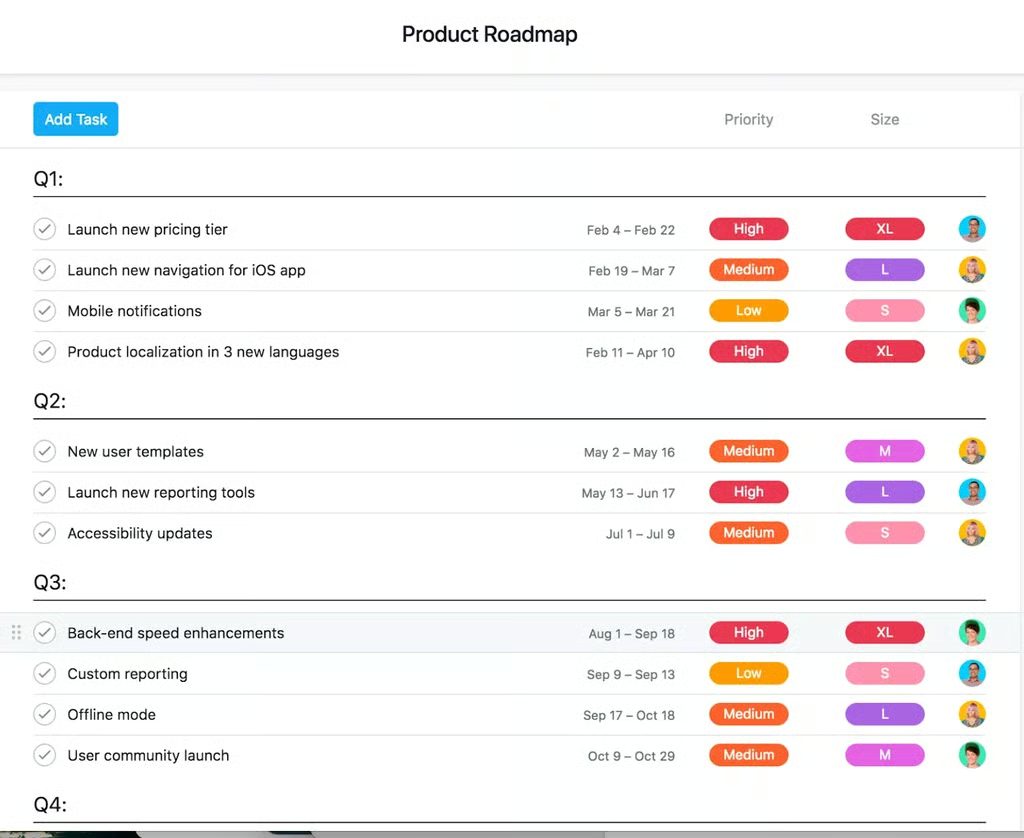
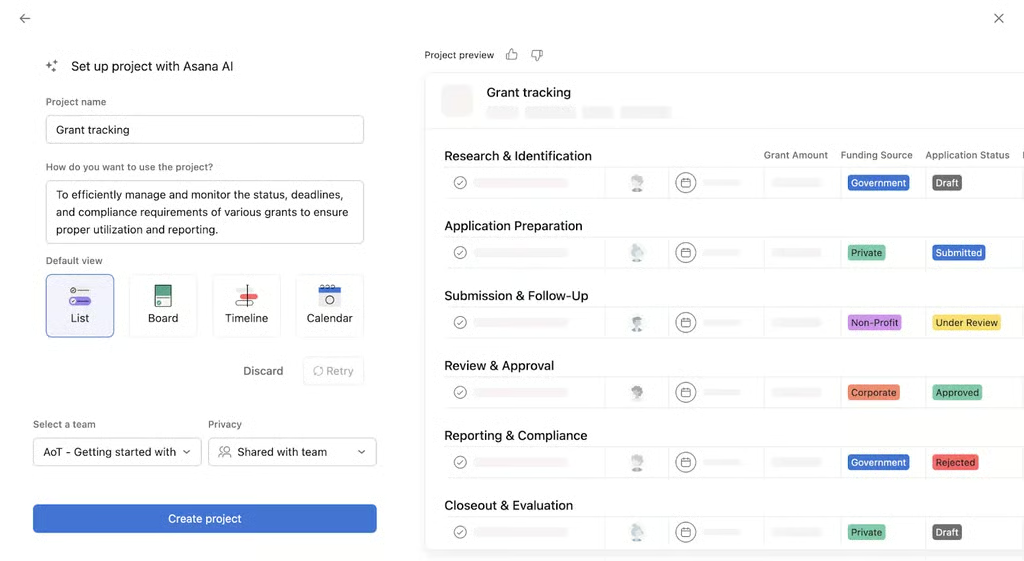
Compared to more feature-heavy options like Wrike and ClickUp, Asana is one of the best free project management tools for beginners who prefer a more straightforward platform. What immediately stood out during set up was the clean, intuitive layout, which made it easier for me to start adding tasks without watching a tutorial.
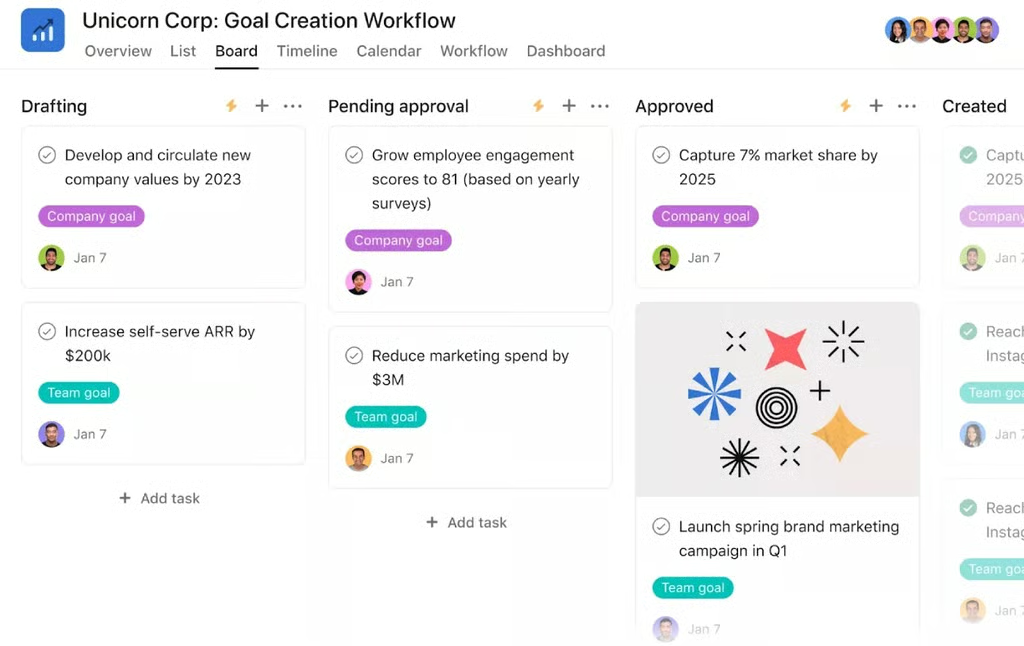
The free plan supports teams of up to two users, with access to unlimited tasks, projects, and activity logs. The same project can appear as a list or board, while Calendar view shows upcoming deadlines for project scheduling. Free storage is unlimited with a 100MB maximum per file. For third-party integrations, Asana connects with over 100 tools, including Slack or Google Drive.
The two-user cap limits the free plan to a single or paired workspace. ClickUp is more suitable for large-scale task tracking because Free Forever supports unlimited members and unlimited tasks.
Pros
- Provides a generous free plan for small teams
- Robust security and privacy measures
- Unlimited file storage included in the free plan
Cons
- Offline access is limited to its mobile app
- Lacks automation credits on the free plan
- Native time tracking is available only in high-tier plans
Standout features
- Advanced search: Allows you to include detailed criteria when searching for items to instantly find tasks, projects, or messages
- Global custom fields: Facilitates consistent data tracking by applying the same custom fields across related projects
- Private teams and projects: Restricts project access to specific teams, ensuring only invited members can view or edit them
Asana pricing
- Free: Up to two users — Includes list, board, calendar views, and 100+ integrations
- Starter: $10.99/user/month — Adds forms, templates, Gantt view, AI studio, automations, custom fields, workflow builder, project dashboards, and unlimited guests
- Advanced: $24.99/user/month — Adds goals, proofing, approvals, time tracking, goals, forms branching, and portfolio workload
- Enterprise: Custom – Adds capacity planning, mobile app controls, and admin controls
5. Wrike – Best for complex timelines




Why I picked Wrike
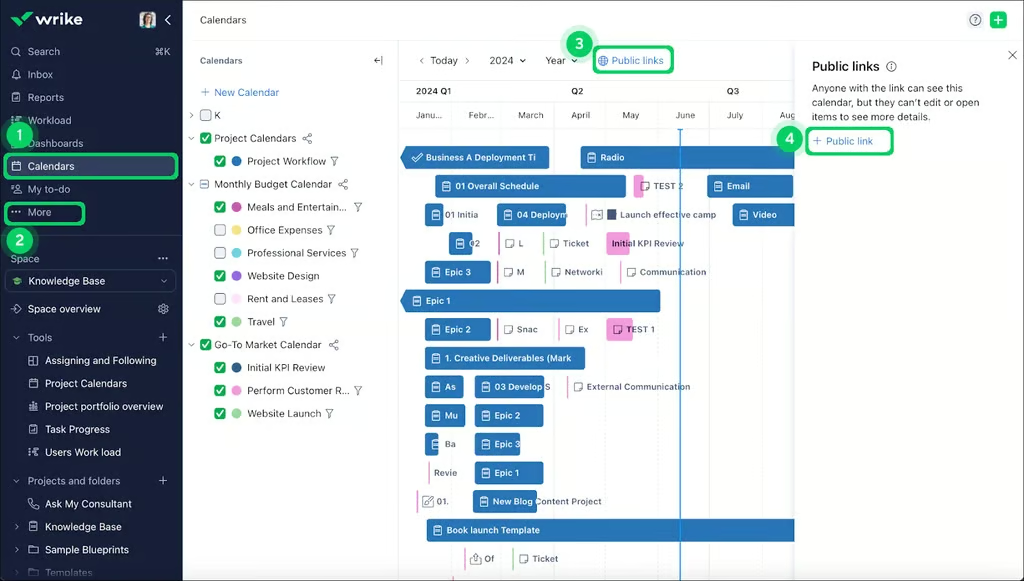
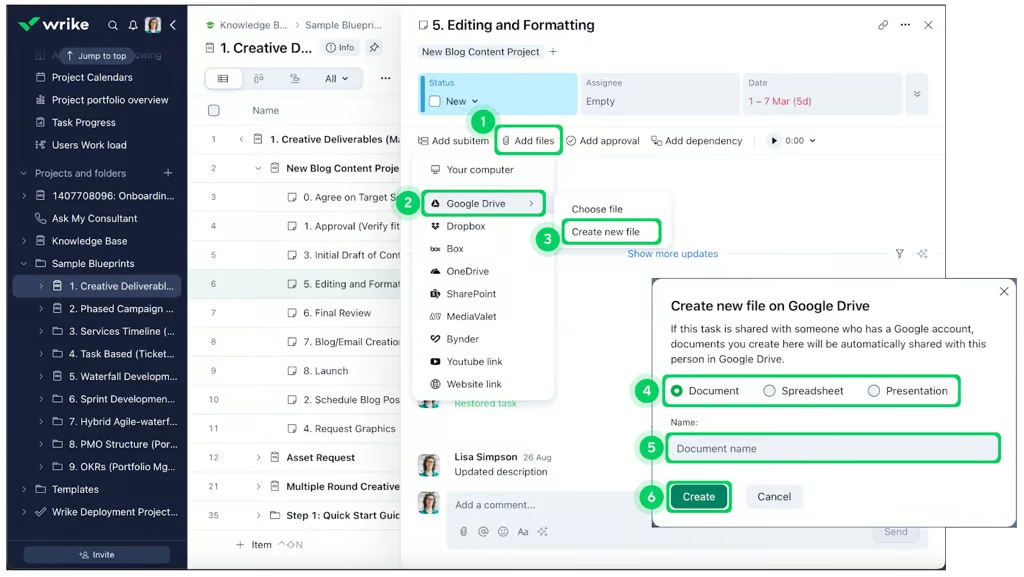
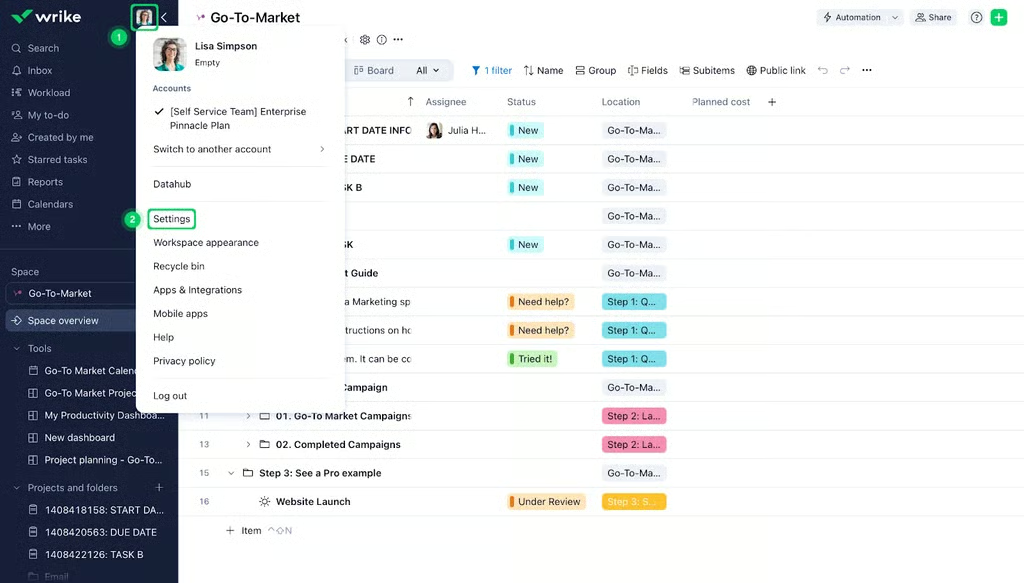
Wrike gives free users one shared space for up to 200 active tasks and subtasks. Table view displays each task with its date and assignee, while Board view sorts work by status. I found these options suitable for managing a schedule as a task register rather than a timeline.
I can break projects into smaller tasks, then filter the list by date or owner. Completed or canceled tasks are not counted toward the 200-task cap, so I can keep adding tasks as long as I close finished items.
Wrike limits its interactive Gantt chart to the paid Team plan, so free users cannot plot overlapping dates or dependencies on a timeline. Teamwork.com addresses this restriction with free Gantt view and task dependencies across five active projects.
Pros
- Multilingual support across plans
- Unlimited users in the free version
- Delegate actions via voice commands
Cons
- Limits the user count per plan
- Offers very limited storage space
- Resource management is only available on the fifth-level tier
Standout features
- Folder hierarchy: Organizes projects and tasks within a structured folder system for clarity and accessibility
- Dynamic Gantt chart: Provides interactive timelines that adjust automatically as project details change
- AI recommended tasks: Utilizes AI to suggest tasks based on your work patterns and priorities
Wrike pricing
- Free: Unlimited users with basic task management and folder hierarchy
- Team: $10/user/month — For 2 to 15 users and adds cross-tagging, generative AI, custom fields, dashboards, Gantt charts, and portfolio management
- Business: $25/user/month — for 5 to 200 users and adds AI elite features, request forms, templates, approvals, workload charts, time tracking, and guest approvals
- Pinnacle: Custom pricing — Adds advanced reporting, resource and capacity planning, budgeting, and locked spaces
- Apex: Custom pricing – Adds Wrike Datahub, bi-directional integrations with third-party solutions, and advanced security controls
6. Jira – Best for agile software teams




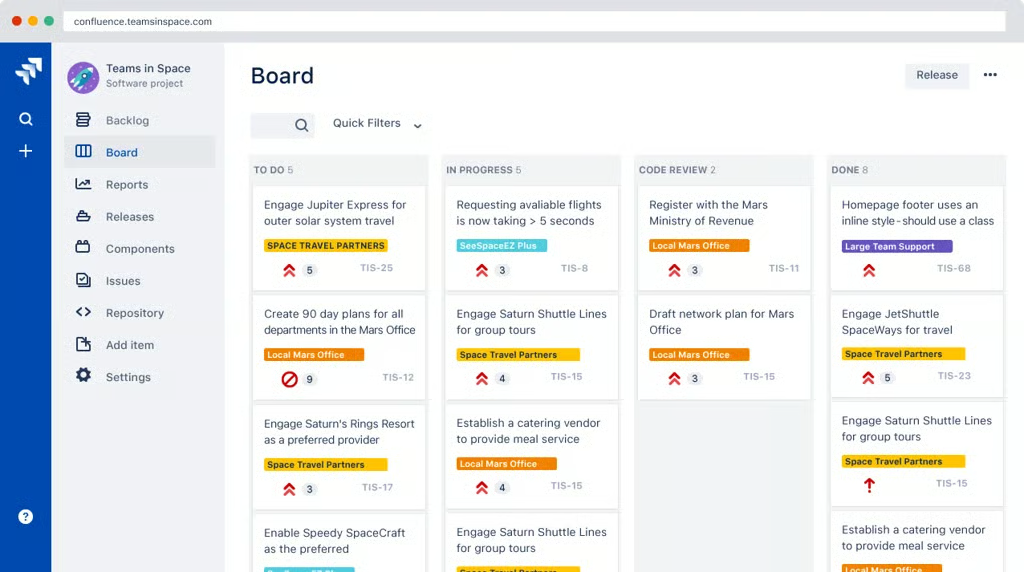
Why I picked Jira
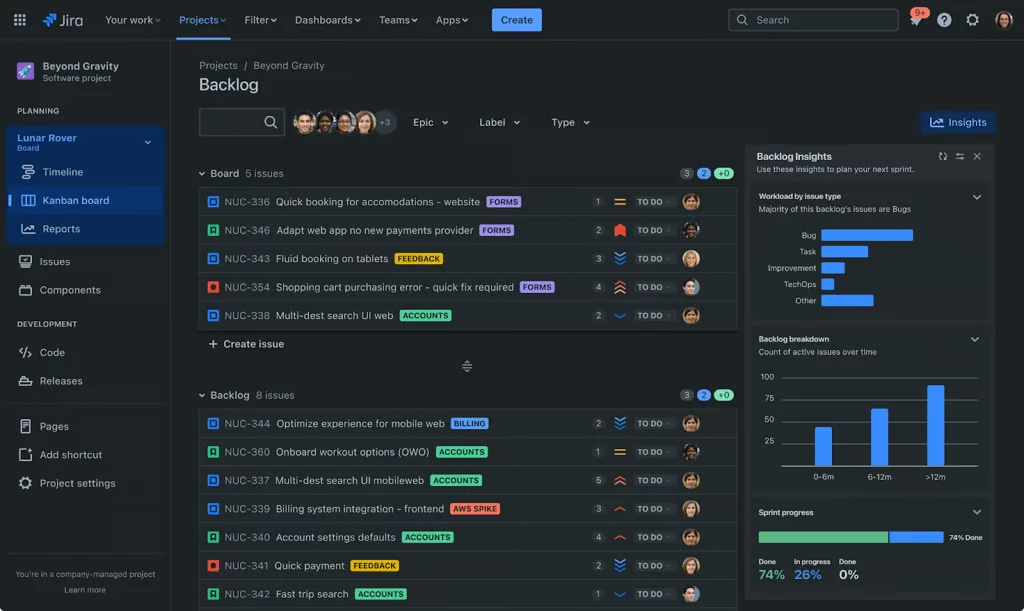
For agile software teams that plan work in sprints, Jira’s free plan includes Scrum boards and a backlog for up to 10 free users. Compared to general-purpose project tools, Jira provides me with specialized features to manage product backlogs, sprint cycles, and issue tracking. I can also create user stories, track bugs, and follow project progress through agile reports.
The Jira platform is designed to simulate the development life cycle, from planning and coding to testing and release. This allows a QA team member or product manager, to break down complex projects into smaller tasks, complete with story points, sprints, backlogs, and version control.
The 10-user ceiling on the free plan can be limiting for large dev teams on a budget. ClickUp is more suitable for a larger no-cost team because Free Forever supports unlimited members and includes sprint management, although its automation allowance is at 100 actions per month.
Pros
- Robust issue tracking tools
- Over 3,000 app integrations
- Offers a variety of chart types
Cons
- No budgeting features
- Can be complex to set up for non-dev teams
- Real-time collaboration tools could be better
Standout features
- Summary views: Provides high-level overviews of project statuses, facilitating quick assessments of progress
- Release tracks: Manages and monitors different versions of your product, ensuring organized deployment cycles
- Custom approval: Enables the creation of tailored approval workflows to match your team’s specific processes
Jira pricing
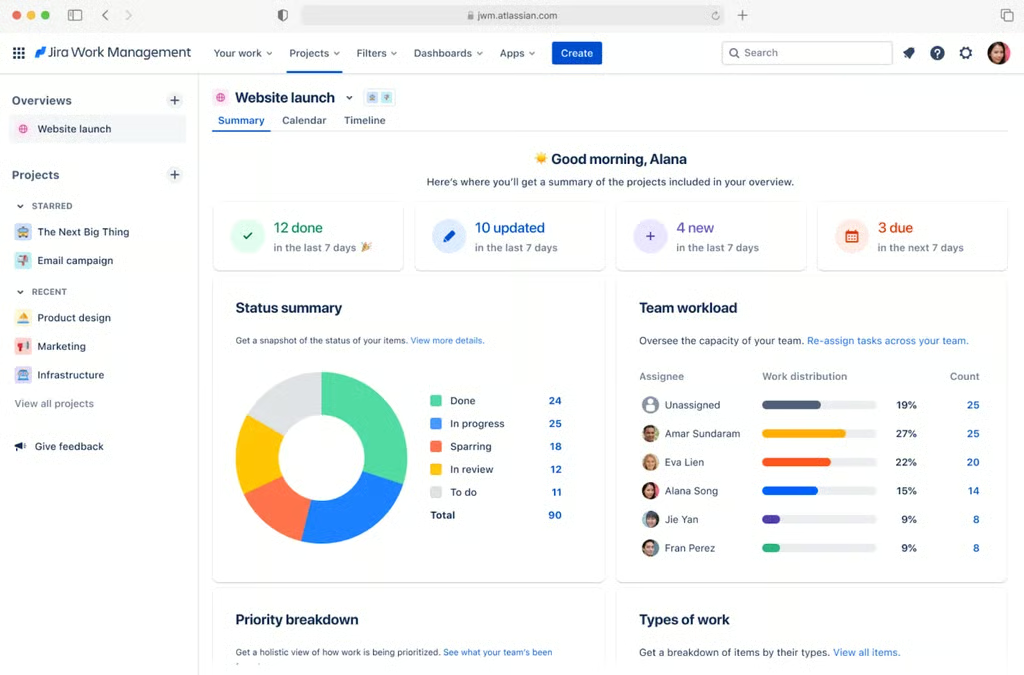
- Free: Up to 10 users — Includes reports, dashboards, unlimited projects, forms, 2GB storage, and project views (backlog, list, board, timeline, and summary)
- Standard: $9.05/user/month — Adds AI assistant, user roles, external collaboration, 250GB storage, and 1700 automation rule runs
- Premium: $18.30/user/month — Adds dependencies, custom approvals, unlimited storage, and 1,000 rule runs per user
- Enterprise: Custom — Adds advanced admin controls and security, cross-product insights, and unlimited automation rule runs
7. Teamwork.com – Best for client-facing work
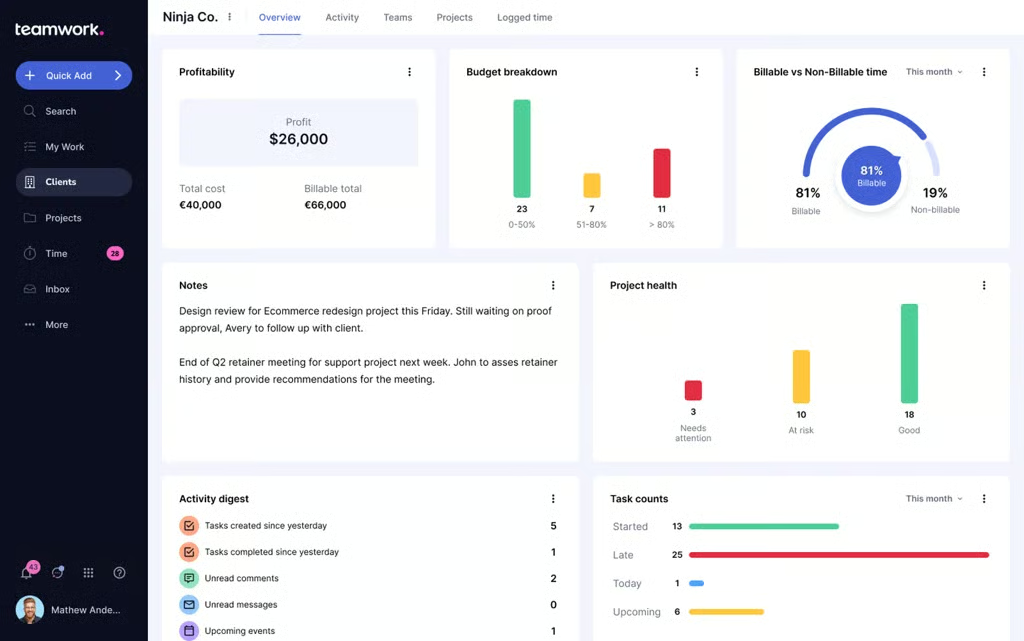
Track profitability, budgets, project health, and task progress in real time with Teamwork.com’s intuitive project dashboard. 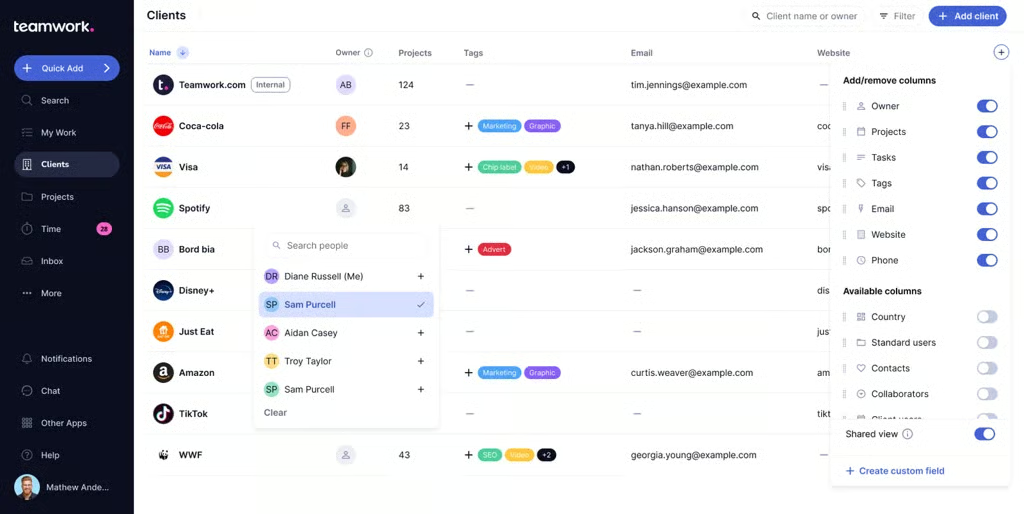
Manage all your clients, projects, and communications in one organized view with Teamwork.com’s client management dashboard. 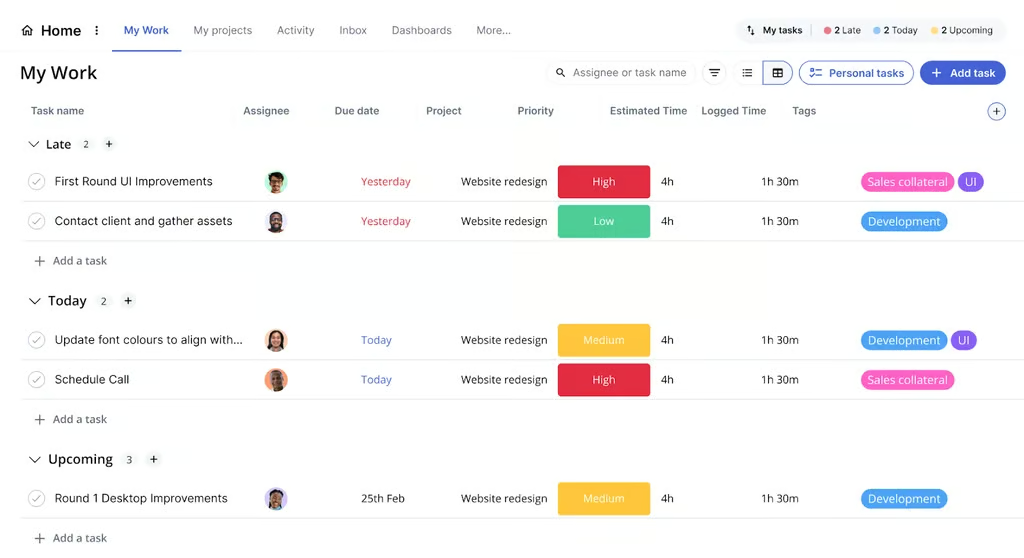
Stay on top of priorities and deadlines with Teamwork.com’s task management view, designed to simplify planning and collaboration.


Why I picked Teamwork.com
As as a client management solution, I highly recommend Teamwork.com for freelancers or companies managing multiple client projects. Its free plan works well for anyone who needs access to essential client-focused features like proofing, project budgets, and invoicing.
On the free plan, five users can manage five projects and record the time spent on each task. This is ideal for small service teams because project work and logged hours are linked to the active client. Teams can lay out each client project in List or Gantt view, which comes included with 100MB of storage, two reusable project templates, 100 automation actions per month for occasional task assignments or status updates.
The Free plan does not include Teamwork.com’s client-user licenses, so clients must provide comments through email or another communication channel. Notion allows client collaboration through 10 free external guests, who can view or edit the specific pages shared with them.
Pros
- Advanced tools for project budgeting
- Extensive workload management tools
- Access AI features on the free plan
Cons
- Team chat has a separate app
- Customization tools can be overwhelming to navigate
- No templates and cloud storage on the free plan
Standout features
- Workload management: Manage your team’s project capacity with real-time visibility into workloads, quickly spot resourcing issues, and reassign tasks to keep projects on track.
- Budget creation: Set up custom project budgets, monitor hours and expenses in real time, and get notified when spending approaches your defined limits.
- Native time tracking: Track and log time directly, create timesheets, set billable hours, and gain insights into where your team’s time is spent for better productivity.
Teamwork.com pricing
- Free: Up to five users – Includes five projects, 100 automations, time tracking, and core project management features
- Deliver: $10.99/user/month — Add project status reports, intake forms, 20 templates, 100GB storage, and 5,000 automations
- Grow: $19.99/user/month — Add budgeting, time, and financial tools, workload resource planner, utilization report, 600 projects, 20,000 automations, 50 templates, and 250GB storage
- Scale: Custom pricing – Adds profitability reports, resource scheduling, custom reporting, budget expenses, 100,000 automations, and 500GB storage
8. Smartsheet – Best spreadsheet-style project management




Why I picked Smartsheet
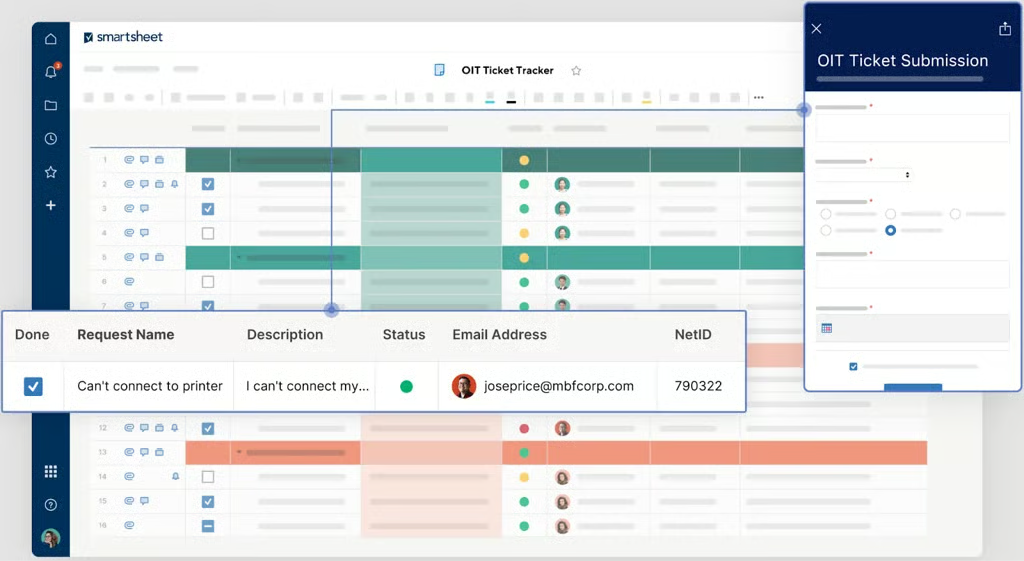
Smartsheet’s grid closely resembles a traditional spreadsheet, which reduces setup time for people familiar with Google Sheets or Excel. I have used it specifically for project budgeting to perform formula calculations and lookups within one sheet or across multiple sheets. This approach works best when project planning highly depends on numerical data.
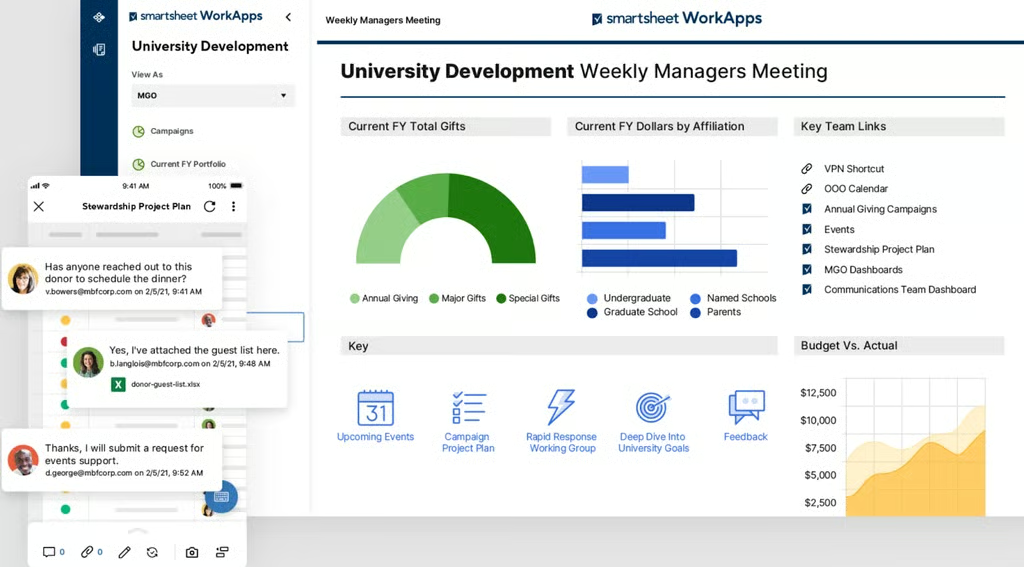
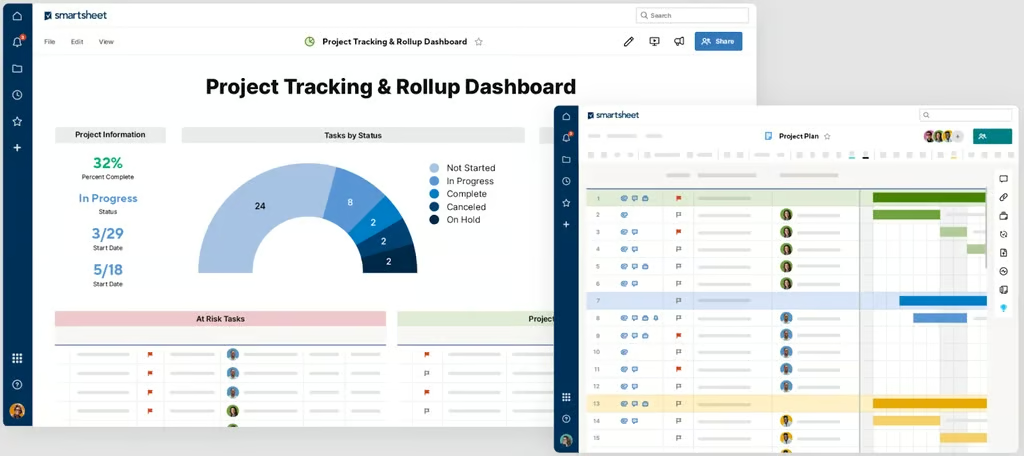
When a client submits a form, Smartsheet records the response as a new row, so teams can collect requests without entering the data themselves. Reports can pull selected information from one or more sheets, while dashboards present the results as charts. Upgrading to Pro includes 250 automated triggers per month, which can send reminders or request updates.
New buyers can use Smartsheet for 30 days before a paid plan is required. Teams that want to remain on a free plan can use Teamwork.com, where five users can manage five projects through Table or Gantt views.
Pros
- Dynamic spreadsheet-like format
- Offers a custom email domain
- Flexible reports and dashboards
Cons
- Free version has been discontinued
- Steep price jump between plans
- Requires a paid subscription to access template sets
Standout features
- Rich formulas: Offers advanced formula capabilities for complex calculations and data analysis
- Team workload tracking: Visualizes team members’ workloads to optimize resource allocation
- Conditional formatting: Applies formatting rules to cells based on specific criteria to highlight key information
Smartsheet pricing
- Pro: $9/user/month — Includes unlimited viewers, formulas, sheets, and project views for up to 10 members
- Business: $19/user/month — Adds free guests, unlimited automations, conditional form logic, timeline view, workload tracking, and admin capabilities
- Enterprise: Custom — Adds work insights, AI formulas, charts, role-based sharing, unlimited attachment storage, and SSO
- Advanced Work Management: Custom – Adds Control Center, granular sharing controls, and app connectors
9. Trello – Best for visual project planning




Why I chose Trello
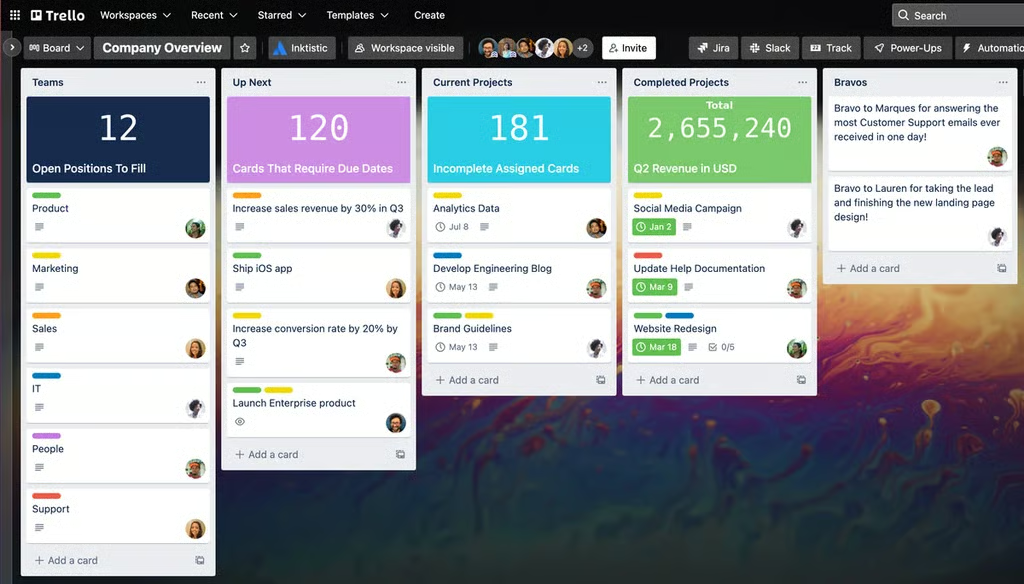
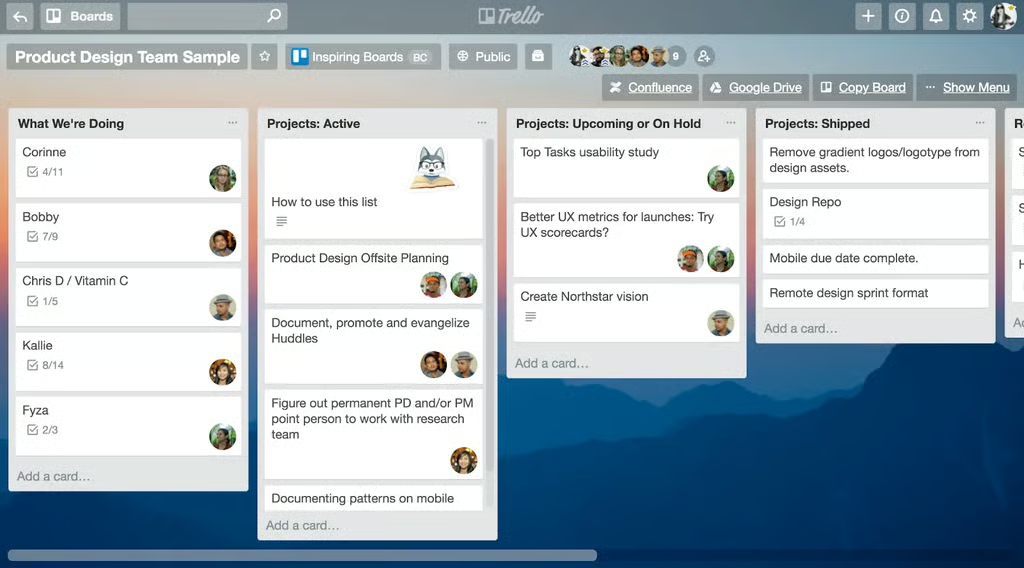
.If your team wants a visual plan with minimal setup, Trello offers a lightweight platform that makes task management feel intuitive even for entry-level users. Unlike competitors that pack in layers of features, Trello focuses on accessibility through its drag-and-drop Kanban boards. A card represents one task, and lists function as stages such as planned or completed.
Users can assign cards with due dates and connect third-party tools through unlimited Power-Ups on each board. The free allowance covers 250 automation runs per month and unlimited storage, although each uploaded file cannot exceed 10MB.
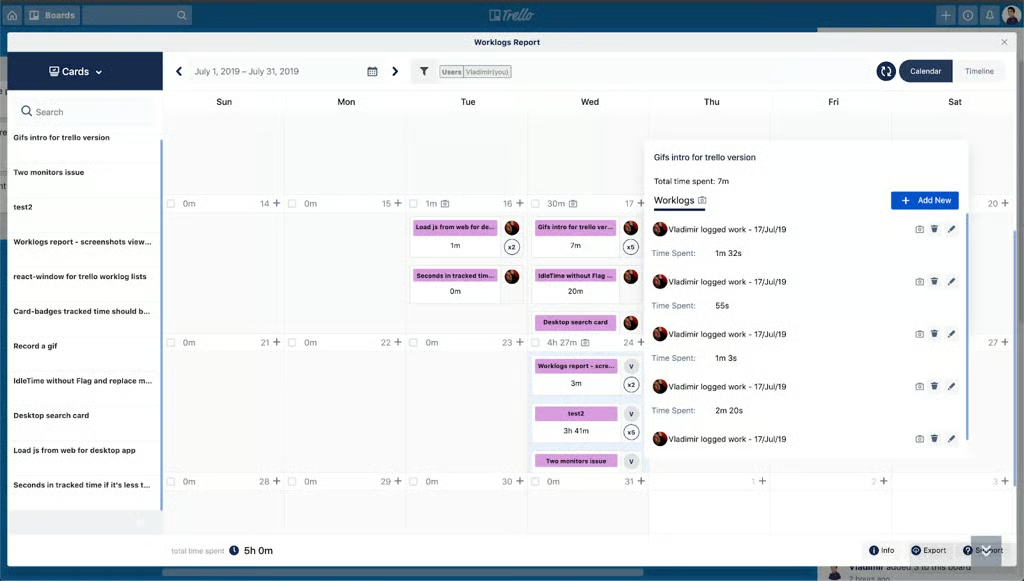
Trello limits free users to the Kanban view, so an upgrade is necessary if you prefer working on a calendar or timeline . Asana handles that requirement at no cost for two people because its Personal plan adds a calendar alongside list and board views, with unlimited tasks and projects.
Pros
- Includes Power-Ups that expand platform functionality
- Unlimited activity log on the free plan
- Intuitive drag-and-drop Kanban interface
Cons
- Lacks a native task dependency tool
- Limited reporting capabilities
- Not ideal for complex, large-scale projects
Standout features
- Card mirroring: Syncs Kanban cards across multiple boards while providing real-time updates
- Advanced checklists: Assigns due dates and members to individual checklist items within a Kanban card
- Quick capture: Enables the rapid addition of tasks or notes from various sources, such as emails or Slack, to your Trello inbox
Trello pricing
- Free: For up to 10 users, 10 boards, templates, activity log, assignee, and due dates
- Standard: $5/user/month — Planner, card mirroring, unlimited boards, custom fields, advanced checklists, and collapsible lists
- Premium: $10/user/month — Unlimited workspace runs, admin and security features, and views: calendar, timeline, table, dashboard, and map
- Enterprise: $17.50/user/month — Unlimited workspaces, multi-board guests, attachment restrictions, and org-wide permissions
| Looking for free open-source project management tools? Check out our in-depth guide on the best open-source project management software to explore top platforms, compare features, and find the right solution for your team. |
10. Miro – Best for collaborative brainstorming

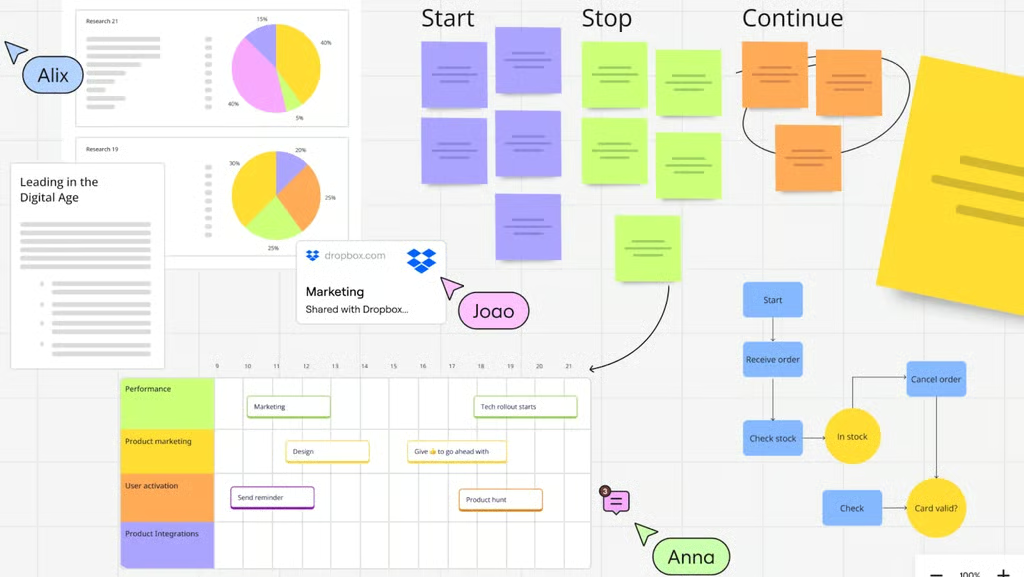
Visualize ideas, manage workflows, and organize project plans on a single Miro board. 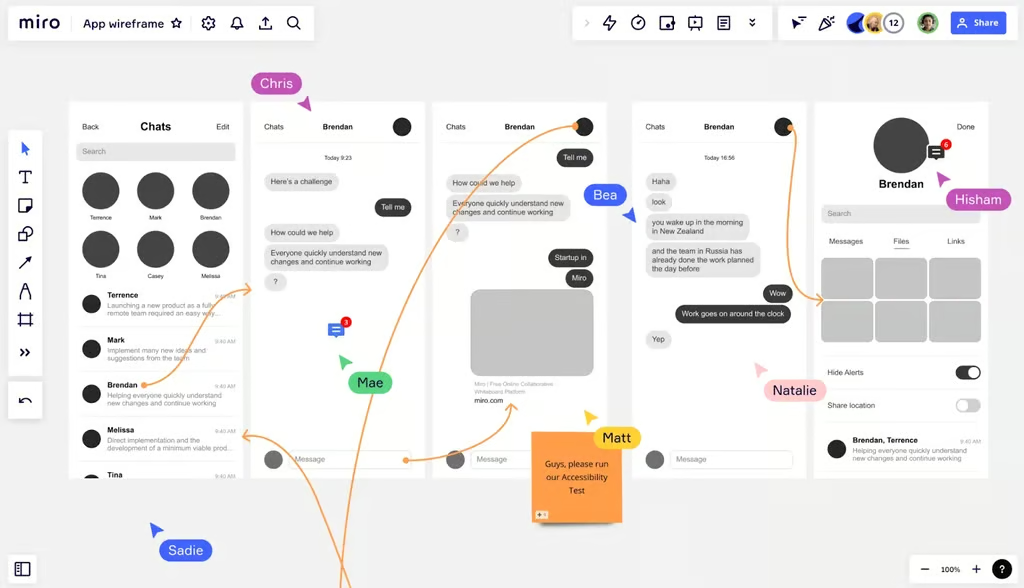
Collaborate on app wireframes and user flows with Miro’s visual workspace. 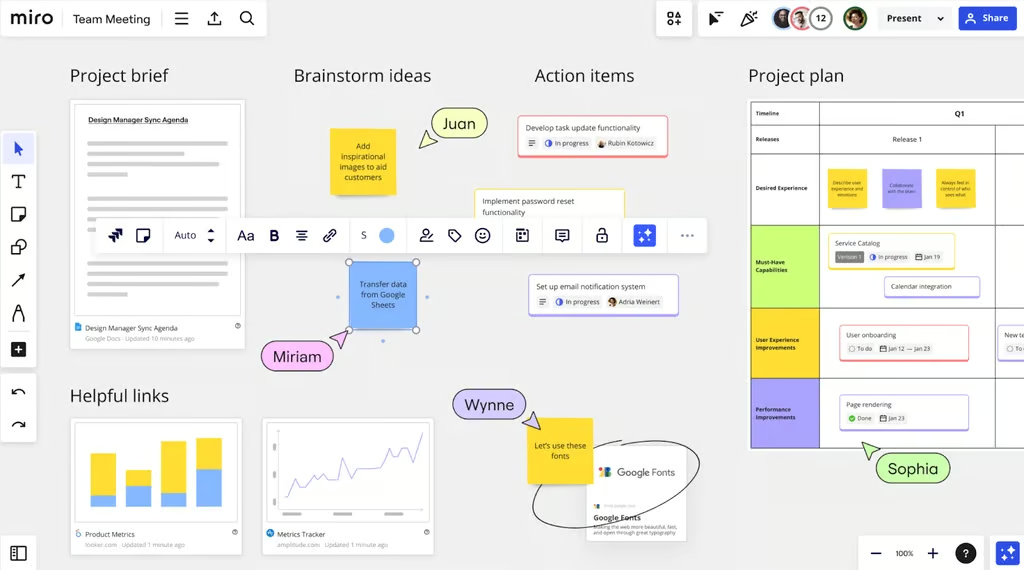
Manage project briefs, action items, and timelines in one organized Miro workspace.


Why I picked Miro
Miro offers a unique collaboration experience compared to typical project management platforms. With over 7,000 whiteboard templates, I can quickly start live or asynchronous brainstorming sessions and access interactive tools such as connectors and sticky notes.
The Create with AI feature lets me use my board content as prompts to generate ready-made outputs. Plus, I can import reference materials, sketch rough ideas, and use AI to turn those ideas into diagrams, process flows, and database schemas.
The Free plan supports unlimited members and boards, but only the three newest boards are editable. Trello is more suitable if you need multiple visual workspaces because its free plan includes up to 10 editable boards for as many as 10 Workspace collaborators.
Pros
- Flexible project workspaces
- Drag-and-drop tool makes it engaging to use
- Rich template library
Cons
- Lags when working on larger boards
- Not ideal for record keeping
- Can be difficult to use when working with numbers
Standout features
- Miro Assist: With this AI-powered tool, you can speed up the creation of diagrams, organize topics, and map out ideas visually.
- Spaces: Spaces revamps the dashboard and sidebar to improve contextual and hierarchical content management, making it easier to organize and navigate through large amounts of information.
- Slides: Create and present interactive, engaging decks directly in Miro, with real-time co-creation, annotation, and brainstorming.
Miro pricing
- Free: Includes unlimited members, three editable boards, and templates access
- Starter: $8/user/month – Adds unlimited boards, version history, and video calling
- Business: $16/user/month – Adds unlimited guests and diagramming shapes
- Enterprise: Custom – Adds centralized account management and org-wide controls
Which features are usually missing from free PM plans?
Free project management tools usually cover basic task tracking, but advanced planning and administration features are often restricted. The limits most likely to trigger an upgrade are resource management, portfolio reporting, higher automation allowances, and enterprise security controls.
| Capability | Common free-plan restriction |
|---|---|
| Gantt charts | Limited access or available only on paid plans |
| Dependencies | Restricted to certain plans or usage levels |
| Automation | Monthly action or run limits |
| Workload management | Commonly reserved for paid tiers |
| Portfolio management | Usually available on higher-priced plans |
| Advanced reporting | Limited dashboards or reporting options |
| Admin and security controls | SSO, advanced permissions, and audit tools are typically paid |
For buyers, the most important question is which missing feature will affect the team first. A free plan may support unlimited users, for example, but still become restrictive if the team needs workload planning or portfolio visibility.
Free vs paid project management apps: Key differences
Choosing between free and paid project management apps comes down to your team’s size, goals, and the complexity of your workflows. While free tools are great for getting started, paid plans often unlock the power and flexibility that growing teams need.
| Feature | Free plans | Paid plans |
|---|---|---|
| User limits | Often capped for 5 to 15 users | Typically unlimited or much higher limits |
| Projects and storage | Limited number of projects and storage | Unlimited or generous storage and project caps |
| Task management | Basic boards and lists | Advanced views like Gantt, timelines, dependencies |
| Collaboration features | Core features like comments and mentions | Enhanced tools like proofing, guest access, roles, and chat |
| Automations and integrations | Not available or limited | Full automation access and third-party integrations |
| Reporting and dashboards | View-only or basic reports | Custom reports, dashboards, and analytics |
| Support and security | Self-serve support via help center | Priority support, SSO, and admin controls |
While free online project management tools offer a budget-friendly starting point for individuals and small teams, they can quickly fall short as your size and workload grow. Paid tools provide the advanced features, customization, and scalability to manage projects efficiently, making them a cost-effective investment for most businesses.
How to choose the best free project management tools
Start by identifying which limit your team is most likely to hit first. Free plans often look similar at a glance, but the real differences appear in user caps, storage, automation allowances, project views, and access to reporting or resource management.
Use these questions to narrow the options:
- How many people need access? A generous feature set will not help if the free tier only supports two or five users.
- Which PM features must remain free? Check whether dependencies, Gantt charts, time tracking, forms, or dashboards are included before you commit.
- What will force an upgrade? Compare the first paid tier that unlocks the feature you are likely to need next, rather than only looking at the advertised starting price.
- Will the free plan still work as projects expand? A tool that supports unlimited users may still become restrictive if storage, automation, or reporting limits are low.
An important rule is to choose the free plan that supports your current workflow and has the least disruptive upgrade path. The cheapest free option can become expensive later if one missing capability pushes the team onto a much higher tier.
FAQs
What is the best free project management tool?
ClickUp is the best free project management tool for teams that want unlimited users and complete task management tools at no cost. Its free plan covers task creation, collaboration, and several project views, while paid tiers add more advanced capabilities such as Gantt charts, portfolios, and resource management.
Which free project management software allows unlimited users?
ClickUp is one of the best-known free project management tools that allows unlimited users. This makes it useful for growing teams, although the free plan still has limits on storage and some advanced features, so teams should check which restriction they are most likely to reach first.
Is there a free project management tool with Gantt charts?
Yes, some free project management tools include Gantt-style views, but access varies by provider and plan. Free tiers often restrict advanced scheduling, dependencies, or the number of Gantt views available, so teams should verify whether the free version supports the level of planning they need.
What is the best free PM software for small teams?
ClickUp is the best free PM option for small teams because it supports unlimited users and covers core task management. Trello is better for simple visual workflows, while Jira works well for small software teams that need backlog, sprint, and issue tracking.